My YouTube algorithm served up a video on the history of the Las Vegas strip earlier today — catnip for somebody who loves history documentaries. So I pressed play while I was puttering around the house getting things done.
It didn’t take long to capture my attention, though, because near the beginning the “host” says the video is made with AI. Indeed, the entire YouTube channel, Thomas Relives History, uses old photographs and other material to create high resolution video and bring the past to life. What an excellent use-case!
The channel sells itself this way:
This channel is about reliving the past through visual reconstruction. Using modern tools to step back into earlier worlds — not to reinterpret history, but to experience it from within. From the street level, the workplace, the quiet moments between major events.
Thomas Relives History goes beyond famous landmarks and well-worn timelines. It focuses on environments, processes, and situations that are rarely shown in detail: how places functioned, how moments felt, and how history was lived before it was ever recorded as history.
The goal is simple — to make the past feel closer, more human, and more tangible.
No spectacle. No shortcuts. Just history, relived.
The channel is still quite new – having launched in January 2026 – with fewer than 7,000 subscribers as I write this. Pop over and see what you think.
I suspect many others might copy this idea, and soon.
First off, happy new year! I haven’t been blogging too much recently, but will attempt to increase the frequency in 2024. I am not calling it a “resolution”, as that word implies commitment. It’s much too heavy a word. It induces mild anxiety! So instead, I’ll simply try to pop up here more often. Does that work?
People are always recommending podcasts to me, as they know I devour them whenever I can. Friends and co-workers often remark that I’m easy to spot in a crowd because I’m always wearing my headphones — whether it’s walking to work, heading for lunch, hiking, on airplanes, you name it. I have my podcast favorites, some I dabble in depending on the episode, and a few others that somehow ended up in my queue but I’ve never listened to. Darknet Diaries was one of those.

Each episode of Darknet Diaries looks at a security-related incident like an online scam, phishing attempt, crypto-crime, or penetration testing, the art of trying to access a building or server without authorization. Companies will often hire hackers and “pen testers” to find weak points in their security, often leading to precarious situations.
Darknet Diaries is hosted by Jack Rhysider, a guy whose previous career in cyber-security enables him to break down issues and make them understandable to the layman (i.e. me). He’s a superb storyteller and comes across as casual and conversational, never talking down to the audience and always making sure they’re following along.
If this sounds good to you, dive in with any episode — I haven’t found a bad or boring one yet. But for an extra treat, I was fascinated by the story of a former criminal named Gollumfun (who is active on X). Those are episodes 128 and 129. As they say, you can find the show wherever you get your podcasts.
Let me know what you think.
One of my nerdier goals during the Christmas break has been cleaning up my messy and discombobulated news ecosystem. I’ve used RSS regularly for a long time, so that’s naturally picked up some cruft in recent years. Throw in a plethora of Substack newsletters and links scattered across various ‘read later’ apps, and you see the potential for some serious link chaos.
The first step was to clean up my feeds in Inoreader, which I’ve mostly done. Inoreader remains the most powerful RSS reader on the market, packed with features for power users. I make good use of the highlighter, rules, tags, and filters. I’ve even combined RSS feeds to create new ones that I can use elsewhere. If you just want to track a few blogs, Inoreader is probably overkill; but if you want to slice and dice through the information overload, Inoreader is among the best ways to do it.
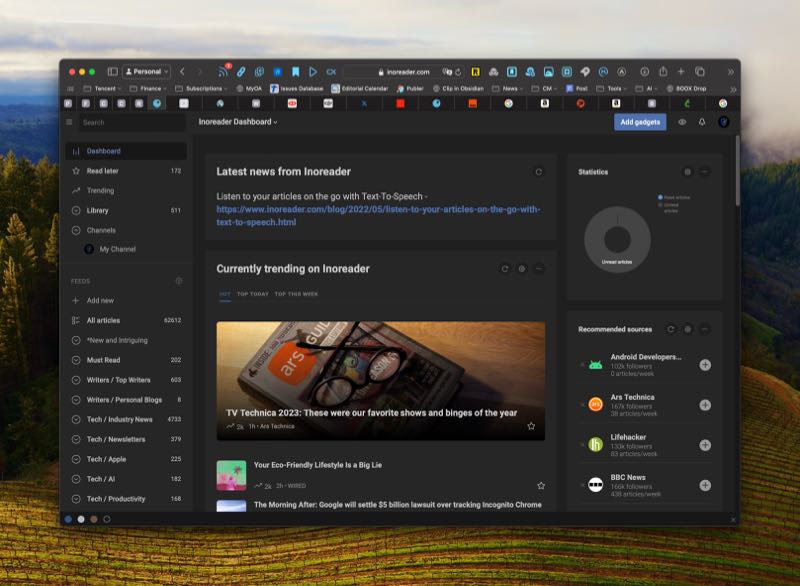
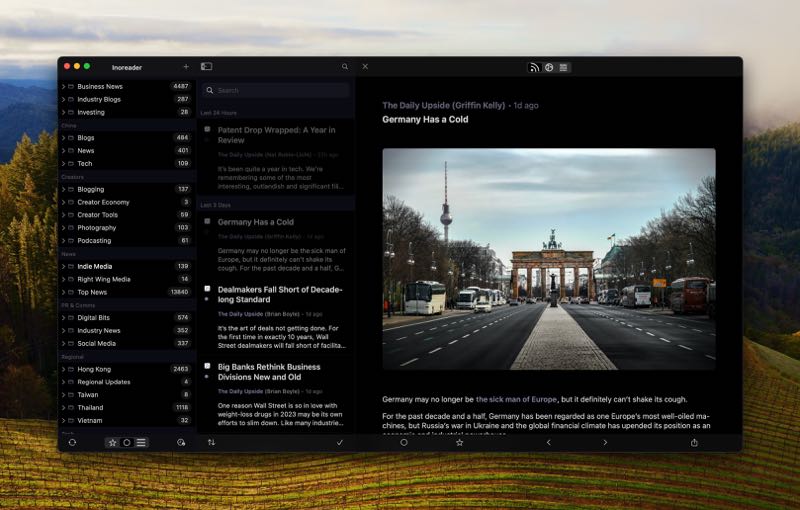
Several years ago I also loved Fiery Feeds, a boutique app available across Apple’s platforms. I remember loving the app, but running into bugs frequently enough that it soured on me over time. And to be honest, I’ve never quite felt right about RSS since then. So after I cleaned up Inoreader, I decided to connect it to the Fiery Feeds app on MacOS, iOS, and iPadOS and give it another shot — and I’m in love.
I had forgotten how clean and streamlined the app is. Fiery Feeds brings over saved searches, tags, and other features of Inoreader, while adding the ability to create “sections”, which can be groups of folders, feeds, or both. I’ve always wanted at least one or two levels down of nested folders, and this feature scratches that itch.
Fiery Feeds also offers granular control over how the app looks and functions, including text font and sizes across various different views, whether you want a one, two, or three-pane view, what left and right swipes will trigger, and which apps to integrate as sharing options. I’ve only started using Fiery Feeds again for the past few days, and so far it’s been totally bug free. Things are efficiently clicking along for me again for the first time in years. It’s lovely!
After I got everything up and running, I decided to dig into some more complex automations. For instance, I connected Zapier and the app Pushcut to deliver urgent notifications to my phone if a news article met a certain set of criteria. I also opened a Telegram Channel and automated a custom news feed directly into the channel, and so far it’s working great. If there’s any interest in how I’ve set this up, let me know below (or ping me on X, Mastodon, Threads, or Bluesky) and I can throw together a tutorial.
Next, sorting through the various ‘read later’ apps I’ve tried over the years, which now includes Goodlinks, Omnivore, Cubox, Anybox, Articles+, UpNext… (hey, for some people, trying every notes app is their thing — don’t judge)
The pandemic lit a fire under people to improve their home work setups, including how they come across on Zoom calls. I remember in the early days of the pandemic finding a video that explained how to make a simple teleprompter for use during video calls, because they enable constant eye contact with the audience while still looking directly at a monitor so you can see everyone else.
If you’re interested, I might do a walkthrough of the whole process. I took that initial idea and tweaked it a bit to make it even better. One of those improvements was getting a thinner, but bigger, display that would be reflected off the teleprompter glass. This created a problem, though: the reflected image appears backwards.
(more…)I often joke with friends — well, half joke — that phone calls are rude. Not all phone calls, of course, but those that come without any warning.
I’m a person who loved getting phone calls when I was younger, but growing up means getting busier. It means filling up one’s day with responsibilities, meetings, work, exercise, chatting with a loved one, or whatever else. I don’t pretend to be busier than the next person, but we all have things to do.
In this context, phone calls are just plain rude. Think about it — we don’t show up at people’s houses unannounced, because we don’t know if now is convenient for them. Unless it’s a close friend or relative, people would usually schedule a visit in advance. Right?
A cold call is the equivalent of the person showing up and banging on your front door without warning. Now, imagine you just settled into a bath when the doorbell rings. Or maybe you’re reading a story to your kids, watching a movie, or just learned a relative passed away. Or, imagine you are sitting in a formal meeting at work, and a buddy bursts in because he wants to talk to you right now. We would never tolerate these things, because they are disrespectful; at least, I couldn’t imagine doing that to somebody else.
In an age of ubiquitous mobile phones and practically free text messages, why not a quick note first? It’s just a nice thing to do, isn’t it?
Thankfully it seems most people have embraced the pre-call text message, at least in my own small circle. But if you’re still dealing with friends dialing you up without warning, designer Dan Mall might have a solution. He’s created an iPhone mockup that gives users a heads-up about the nature of a call before they answer.
From 9to5Mac:
In his concept, Dan imagines that could be a “new interim screen before the call starts that prompts you to add a subject for the call.” In his case, he’s calling someone about “Visiting Westview this weekend.” Not only is it a pretty cool idea, but would also save us time when someone calls you about “that talk.”
On the receiving end, Dan notes, the person can preview the subject of the call to decide whether or not they want to take the call right now.
It wouldn’t necessarily end unannounced calls, but at least the receiver could determine whether to answer or not. It’s a step in the right direction.
As nice as the idea sounds, though, I give it about zero chance of ever happening. If cold callers can’t be bothered to message first, it’s unlikely they’ll take the time to fill out a subject field.
Big news dropped on Friday regarding Microsoft’s plans to develop new Arm processors for its servers, and maybe even its popular laptop computers.
From Bloomberg:
The world’s largest software maker is using Arm Ltd. designs to produce a processor that will be used in its data centers, according to people familiar with the plans. It’s also exploring using another chip that would power some of its Surface line of personal computers. The people asked not to be identified discussing private initiatives. Intel’s stock dropped 6.3% to close at $47.46 in New York, leaving it down 21% this year.
If you’ve been paying attention to the technology space this year, this news shouldn’t come as a huge surprise. It comes mere weeks after new Apple computers running proprietary Apple processors were released, trouncing many high-end, ridiculously expensive machines with much more powerful chips.
(more…)You can now listen to blog posts on CamMacMurchy.com by using the player below, or subscribing to the “CamMacMurchy.com… with Sound” podcast in your favorite podcast app.
Back in the 1980s and ‘90s, flight simulators were a cool way to show off the potential of personal computers. I remember fiddling with the Microsoft Flight Simulator sometime in the 1990s and thinking it was great. My dad, who spent his entire career working for an airline (not as a pilot, though) was so impressed he wanted to give it a shot, too.
How quaint we were.
(more…)The iPhone and iPad have made computers accessible to people all over the world, both young and old. They’ve done away with the mouse and made interacting with apps much more natural, using touch. The result has been an explosion in apps, including some excellent productivity apps for the iPad in particular.
Apple is now trying to take some of that magic and bring it back to the trusty ol’ Mac.
The latest iteration of the Mac operating system, macOS Catalina, rolled out earlier this week alongside several apps making their debut on the Mac. Apple had previously released a new framework to developers called Catalyst, which makes it much easier for developers to take their existing iPad apps and move them to the Mac. The framework, announced in 2018, was met with some early skepticism after the first couple of Catalyst apps, like Apple News and Stocks, didn’t look great on the Mac. In fact, some were concerned that bringing apps designed for a touch interface to a keyboard-and-mouse old school computer might be an awkward fit, making the Mac less streamlined and consistent.
It’s still probably too early to call Catalyst a success, but early returns are looking positive.
As a guy whose life revolves around RSS feeds, seeing Fiery Feeds in the Mac App Store probably got me far more excited than I should be. Someday I will do a deep dive into the combination of Inoreader and Fiery Feeds, which does an excellent job of filtering and tagging important articles. Reeder has traditionally been the standard-bearer for RSS apps on the Mac, with version 4 coming out in April, but the addition of Fiery Feeds and Lire will certainly shake things up. I use Fiery Feeds multiple times a day on my iPad and iPhone, so having everything sync via iCloud and being able to check new articles while on the Mac is huge.

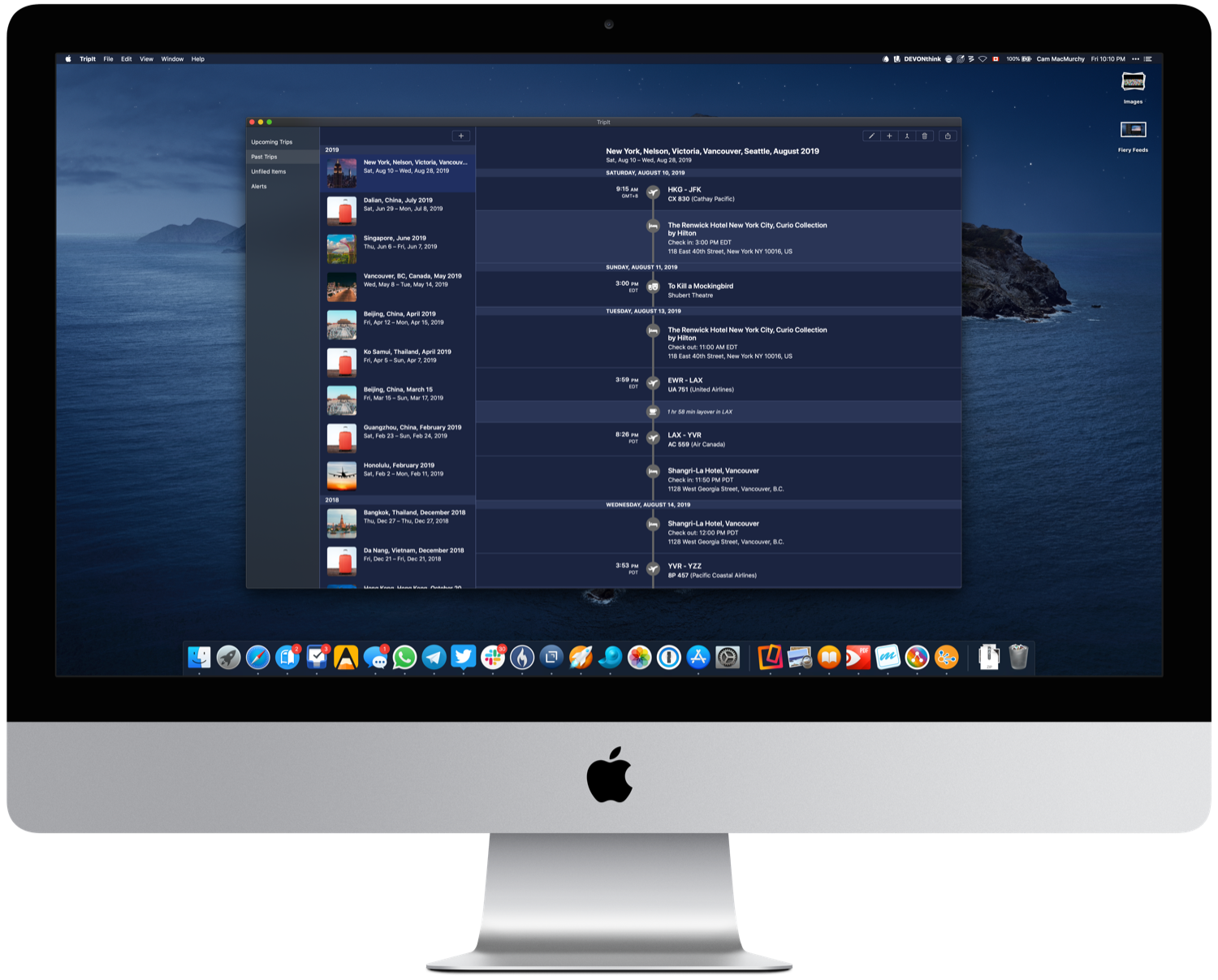
Another app with a big, dedicated user base is TripIt. I began subscribing to TripIt Pro a couple of years ago to help manage travel, and it has generally made keeping flight and hotel information as well as confirmation numbers easily accessible and in one place. I think the app’s UI is a bit dated, but functionally it’s been successful at what it sets out to do.
TripIt’s new Mac app doesn’t bring any surprises, and that’s probably a good thing. It provides all of the same information as the iOS app, but from the desktop.
I have only been testing out Catalyst apps for a few days, and there are still some rough edges that need to be smoothed out. Right clicking is common on the Mac but not on an iPad, obviously, so right clicking sometimes does nothing. I’ve also had each Catalyst app crash on me at least once, so there’s that, too.
Another thing to consider is the price — some of these apps probably cost more than you would expect. I think it’s high time that developers are compensated fairly for their work, so I have no particular issue with paying higher prices — but it will impact sales, regardless. Cocoacake, the maker of Fiery Feeds, is charging US$34.99 for the Mac app, justifying the price on the company’s blog by saying it’s a one-time cost that will cover the next three to five years of app updates. Lire is listed at $19.99.
I suspect performance issues to be worked out over time as more developers use Catalyst and Apple continues making improvements. Even today, in the early days, it’s encouraging to see so many developers embrace Catalyst and have apps ready on day one. If you want to see if your favorite iPad app is ready for the Mac, you can check this handy list put together by 9to5Mac.
If the launch of these early apps is any indication, it looks like a safe bet that Catalyst will breathe some new life and a bit of excitement into the Mac app ecosystem.
The Apple Watch has grown and evolved so much over the years that the latest iteration, the Series 5, is basically an entirely different product from the original (now termed “Series 0”).
The Siri watch face was introduced in 2017 to fulfill the watch’s initial promise: provide the information the user wants in the context and moment the user wants it. It sounds like the ideal reason to own a smartwatch, but it didn’t really work. The watch face, which presents bits of data on cards (pictured below), mostly contained the weather forecast and reminders to stand up and breathe.
Last year Apple opened up Siri to developers, greatly increasing the amount of data that could potentially be shown. Relevance is the most important for a service like this, so users were given the option of selecting which apps should have access to Siri. Here’s the key: it was easy to figure out how to do that. Open the Watch app on the iPhone, tap Siri watch face, and voila: a selection of data sources that can be turned on or off. Great!
Ah, maybe not so great.
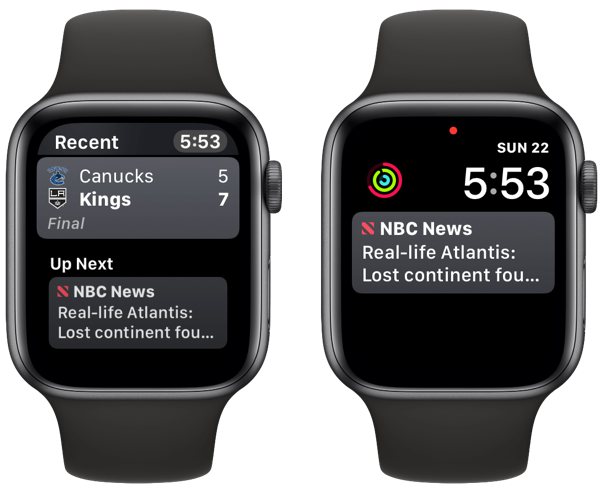
I love the idea of the Siri watch face and think it could be the primary and most useful face for most people. I’d love to see the weather when I wake up in the morning, the time of my first meeting, maybe a news headline or two, and when the Canucks game starts (they are played in the morning here in Asia). Throughout the day different apps could push information to me that I want or need, when I want or need them.
It all sounds fantastic, but it’s never really worked that way. I tried the Siri watch face for a while when it was released with watchOS 4 before reverting to another face. When Apple opened things up in watchOS 5, I thought I’d give it another shot to see if it got any better. I was eager to pick the data sources, which were conveniently right where I expected them to be: on the Siri watch face screen in the Watch app on the iPhone. I mean, makes perfect sense, no?
No.
Today, with watchOS 6 installed, I again thought of giving it another shot. I went to customize my settings but there was nothing there. No data source selection. I tapped around both the phone and watch trying to find this mysterious setting before eventually succumbing to Google.
So, dear reader, I will save you the time and reveal the odd place this setting is located. These instructions assume you’ve already added the Siri watch face to your “My Faces” section. Here’s how to find the data sources:
- Open the Watch app on your iPhone.
- Scroll down until you see “Clock”, then tap it.
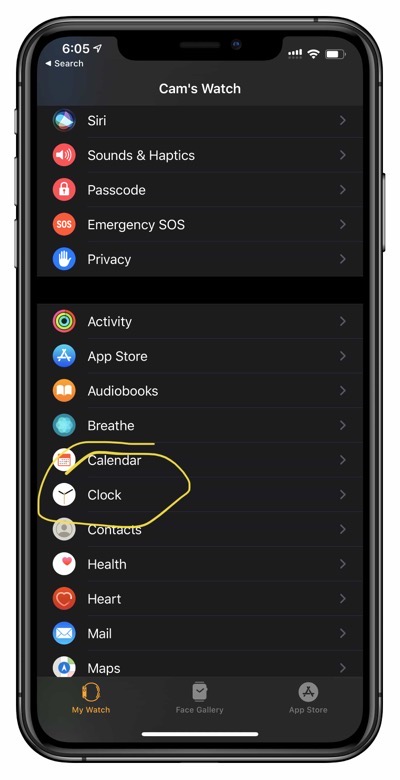
3. Scroll down to the very bottom of the page, where you’ll find “Siri Face Data Sources”. Tap that.
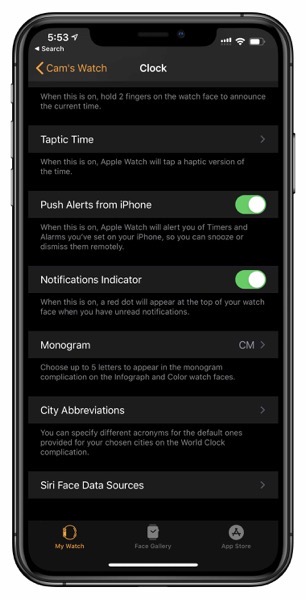
4. Start tapping away.
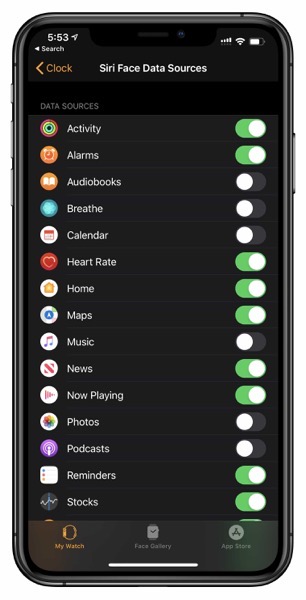
I have no idea why settings for a Siri watch face wouldn’t belong in, you know, the Siri watch face settings. But who am I to second-guess a trillion dollar company?
Now that I’ve found it, I’m excited to see if the watch face is any more useful. Fingers crossed.
We had a brainstorming meeting with some of the millennial Management Trainees at work today, and we went around the table talking about which apps have left an impression with them, either though design, functionality, or anything else.
One trainee mentioned Planto, off-handedly mentioning it integrates local bank accounts, securities accounts, and even Octopus, the cash card used widely here since 1997, into a single dashboard. I had never heard of it, but made sure to download it as soon as I got back to my office.
Planto is supported by the University of Hong Kong’s Entrepreneurship Center iDendron, which helps to nurture and grow the startup ecosystem in Hong Kong. The founders say the goal is to demystify finance and provide simple, actionable financial advice for people who might be intimidated when the issue of investing comes up.

I’ve signed up and integrated my accounts — despite serious security concerns. I’m known to throw caution to the wind sometimes, and this is one of those times! I want to take the app for a proper spin, because it’s rare for Hong Kong to get new fintech apps like this. Hong Kong is a very small domestic market, so most of the exciting companies in this space are in the UK, US, or Mainland China.
I am not recommending this app, only pointing it out. We need to ask serious questions before providing a third-party company with universal access to all of one’s bank and securities accounts; so do as I say, not as I do. That said, if you end up giving this app a shot let me know what you think.